
What did my last prompt change?
What this page is for: after each prompt you give Claude Code, seeing what that prompt changed: files, structure, risks and the lines of code. It works without you remembering to take a snapshot first.
It is the automatic version of What did the AI change?. There, you save a snapshot by hand before a change. Here, Claude Code's hooks tell codeTAC when each prompt starts and ends, and codeTAC keeps the files of both moments.
Steps
In your project's main folder, once:
codetac hooks installIt shows what it will write and asks first. It adds eight hooks to
.claude/settings.local.jsonand writes nothing else in the project: three record each prompt, five note each step for the live window.Start your app with codeTAC as usual (
codetac).Open Claude Code in the same folder and give it a prompt.
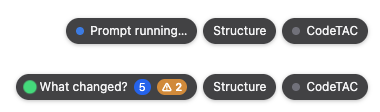
While the prompt runs, the bar in your app shows Prompt running…. When it ends, it shows What changed? with the number of changes and, in orange, the number to look at.
Press What changed? to open the report of that prompt.
To stop recording: codetac hooks uninstall. It puts .claude/settings.local.json back as it was (or removes it, if codeTAC created it). The prompts already recorded stay in codeTAC's data folder.
What you see
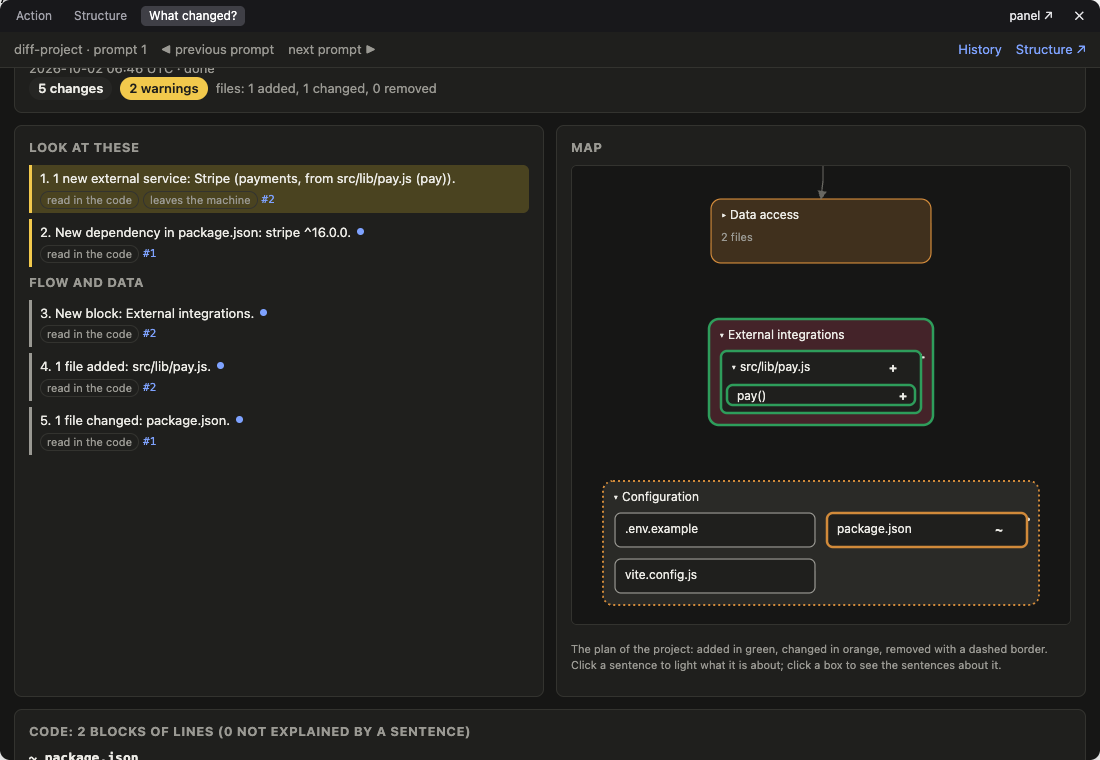
At the top: the text of the prompt, when it ran, whether it ended (done) or was stopped (interrupted), and how many files were added, changed and removed.
The sentences
Made by rules (no AI), the most important first, in two groups:
- Look at these: what can hurt you, for example:
- a secret that now reaches the browser;
- a new outside service (data leaves your computer);
- a new, removed or changed dependency in
package.json,requirements.txtorpyproject.toml; - a test file deleted, or a file with fewer tests;
- a new route possibly without a session check (a guess: none of the known checks is near it).
- Flow and data: blocks, routes, tables, variables and files added, removed or changed.
Each sentence says read in the code (it comes from the files, not from a guess) and has its tags: leaves the machine, secrets. The #1, #2 link to the blocks of lines that prove it.
The request
What did the prompt ask for, and what did the AI do besides? Press Read the prompt with AI…. You see exactly what would be sent (the text of the prompt, with secrets hidden, and the paths of the project's files; never code), and it goes only when you press Send. The AI writes the prompt as a list of changes: files to add, change or remove, blocks that start depending on another, new services. Then the rules, not the AI, compare that list with what really changed:
- You asked, and it was done;
- The AI also did: changes the prompt did not ask for. Their number shows as outside the request, in purple, at the top of the report, in the history and on the bar (
↗); - Asked, not done.
The list is marked as an AI interpretation: check it. If it is wrong, press Edit the request and correct it (one item per line); the comparison is made again. With no AI set up, or with AI off in Privacy, press Write it yourself. Press an item to light the sentences about it.
Behavior: what the app now does differently
Run an action in your app (a click, a form) before the prompt and the same action again after it. The Behavior section compares the two runs. It looks at the requests to the server and how they answered, the functions of your project that ran, what the action did outside the code (the database, outside services, AI, email, payments, files) and its errors. For example:
- «button “Add user”» now also sends an email (Resend);
- «button “Add user”»: POST /api/users now answers 500 (it answered 201);
- «button “Add user”» now runs a function it did not run before: sendWelcome (lib/mailer.js).
These sentences are observed: they come from the two runs, not from reading the code. Show its path on the map colours the path of the action: new on the path, no longer on the path, on the path through code the prompt changed, or unchanged. Actions run only after the prompt are listed apart: there is no point of comparison for them.
Run an action again
Under Not run again since the prompt, the report lists the actions you ran before the prompt and not since. For each one it says what the action touched the last time it ran (for example «writes to users (INSERT); sends an email (Resend)»).
- When the action only reads (GET requests with no parameters), the report opened from your app's What changed? button has a Run it again button. It says which requests it will send. They go from your app's page, with your session, and the Behavior section then compares the new run (marked run again).
- Any other action (a form that sends data, requests with parameters, a server on another address) is done by hand: the report says where and what to press.
Nothing runs until you press the button, one action at a time. codeTAC never records what you typed or the values of the parameters, so it cannot send a form again for you. Run it again is offered only for the newest prompt: after a newer one, the new run would also show its changes.
Undo a prompt
At the bottom of the report, Undo this prompt puts the project's files back as they were just before the prompt.
- Press See what would change. You see the files that will be put back, the files that will be removed (the ones the prompt added) and the ones codeTAC will not write.
- Press Undo the prompt: change these files. Nothing is written before that.
Your app reloads the files as it does with any change. After an undo, the report says so, and See what redo would change puts the prompt's changes back. In the Terminal:
codetac diff undo       # undo the newest prompt (shows the files, then asks)
codetac diff redo       # put its changes back
codeTAC refuses, and changes nothing, when:
- a prompt is still running;
- a newer prompt came after it: only the newest prompt can be undone;
- the files changed since the prompt ended (by you or by another program). codeTAC never mixes changes.
.env files are never written (codeTAC keeps only their names), nor files with keys in them (its copy has the keys masked), nor files over 2 MB: they are listed for you to change yourself. node_modules and the .venv are not touched: if the prompt installed a dependency, the report tells you to install again after undoing.
Press a sentence
The sentence lights up its blocks of lines in the code and its boxes on the Map.
Press a box on the map
The sentences about that box light up. The map is the floor plan of the project before and after the prompt: added in green, changed in orange, removed with a dashed border.
The code
Below, every changed file, old lines beside new ones, in blocks. Each block says which sentences it explains. A block no sentence explains is counted at the top of the code: these are the changes the rules have nothing to say about, so read them yourself.
Other prompts and the history
◀ previous prompt and next prompt ▶ move between prompts. History lists them all, newest first, with how many changes each has, how many to look at and how many you have not opened yet.
Without the app running
codetac diff            # the newest prompt, in the Terminal
codetac diff 3          # prompt 3
codetac diff --list     # all the prompts recorded
codetac diff --code     # with the lines
codetac diff --open     # the same report, in the panel
codetac diff undo       # undo the newest prompt; codetac diff redo puts it back
codetac diff --open starts the panel by itself when it is not running. That panel keeps running after the command.
Where the prompts are kept
In ~/.codetac/diff/ on your computer, never inside your project, and nothing is sent anywhere. For each prompt codeTAC keeps:
- the text of the prompt, with secrets hidden: the values of your
.envfiles, keys in known formats, emails and phone numbers become[REDACTED]; - a copy of the project's files before and after (the same files the plan reads: what git ignores is left out). Only the names of the variables in
.envfiles are kept, never their values, and keys written in the code are masked. Files over 2 MB are listed without a copy.
The 50 newest prompts are kept for each project. You can change that with diff.keep in the settings file.
What it means
Claude Code says it "added a payment button". The report shows it also added a new outside service, a new dependency and a secret that now goes into the browser code, with the lines. You can catch it at the prompt that did it, not three prompts later.
What it can't tell you
- Only Claude Code says when a prompt starts and ends. For other AI tools (Cursor, Codex…), use a snapshot by hand.
- Two Claude Code sessions working on the same project at once, or a subagent still working when the next prompt starts, mix their changes: the report warns that some of the changes may be from the other one.
- Edits you make by hand while a prompt runs count as the prompt's.
- The diff is of whole lines: changing only spaces counts as a change.
- Behavior recognises «the same action» by its page and what was clicked: a button whose text changes with the data («Delete Ada») is not recognised from one run to the next. It compares one run before with one after, so a difference that comes from the data (another input, a failing service) shows as a change.
- Outside the request compares the structure (files, blocks, services), not every line: a change inside a file that was asked for counts as asked. And it is only as good as the list: read the AI's interpretation before trusting the number.
- The rules for risks are rules: a route possibly without a session check is a guess, and a dependency or test the rules do not know is not seen.
- Run it again repeats only reading requests (GET with no parameters), as a request from the page: it does not open the page nor run its JavaScript. Forms and requests with parameters are done by hand.
- Undo works only for the newest prompt and only when the files did not change since. It does not undo a single change, nor what the prompt did outside the files (a database migration it applied, a package it installed).
- With the browser window hidden or covered by another window, the bar waits until you see it again to ask for news.