What happens when I click?
What this page is for: reading the dossier — the record codeTAC makes of each action you do in your app — so you can see what your code really did.
Steps
- Start your app with
codetac(Install and first dossier). - In your app, do the thing you want to understand: press Save, sign in, add an item.
- Click the Recorded: … bar in the bottom right corner of the page (or open the link shown in the Terminal).
- Read the dossier from top to bottom, as explained below.
- To understand one step better, click the function and ask a question about it.
What each part means
The top sentence
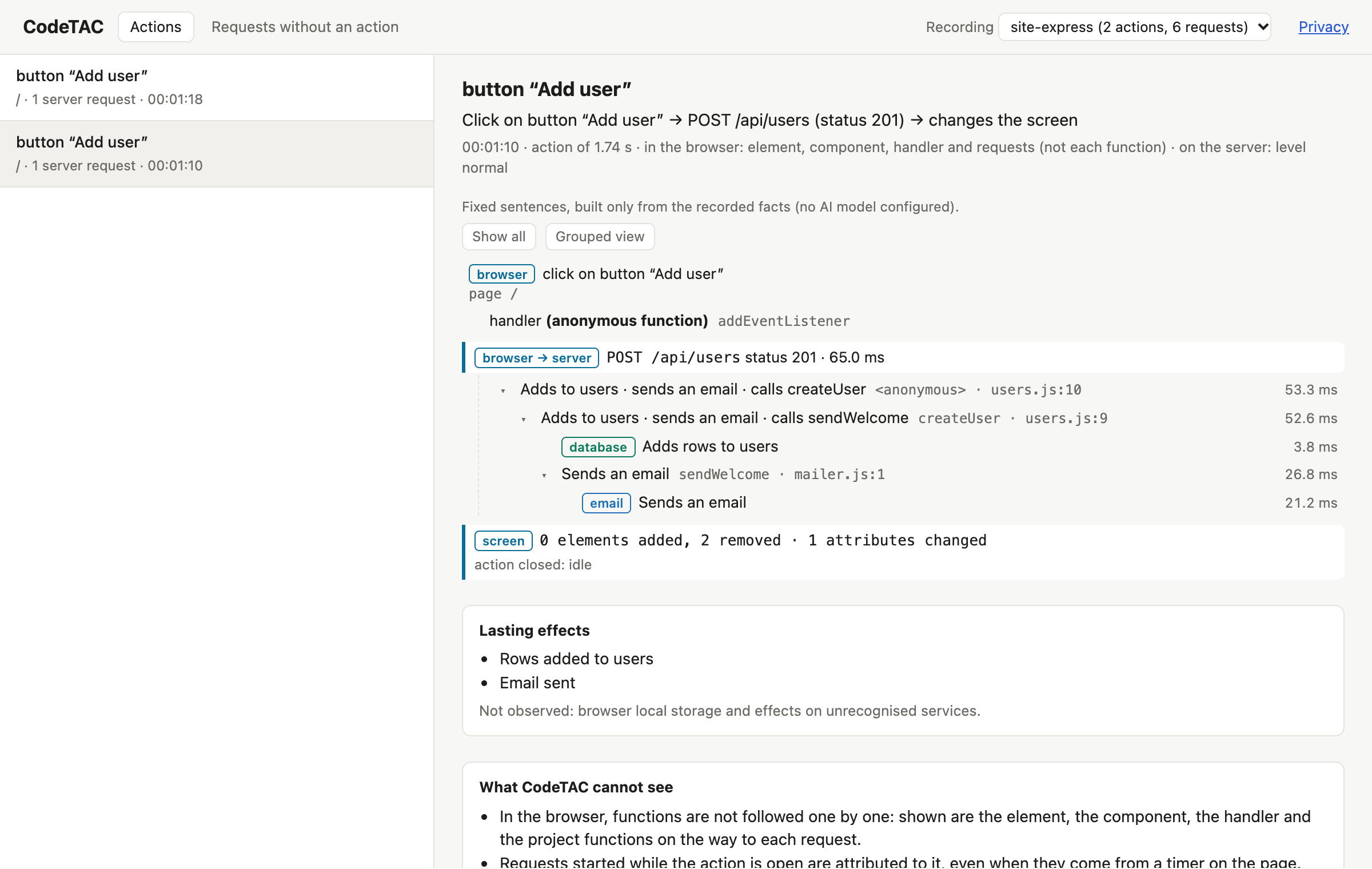
A summary of the whole action, for example:
Click on button “Add” → POST /api/items (status 201) → changes the screen
Browser → server
Each request your click sent to the server. Under each request are your project's functions that ran, in order, each with its file and line. Code from libraries is left out, so you only see your own code.
Coloured tags
Tags such as database, HTTP, email mark the moments when your app talks to the outside world:
| Kind | Examples |
|---|---|
| Database | Postgres, MySQL, SQLite, MongoDB, Redis, Supabase — with the table and the operation |
| AI | OpenAI, Anthropic, Google, Mistral, Groq, OpenRouter, local models… |
| Email and messages | Resend, SendGrid, Postmark, Mailgun, Brevo, nodemailer, Twilio… |
| Payments | Stripe, showing test or live mode |
| Sign-in | NextAuth, Supabase Auth, Clerk |
| Files | the computer's disk, S3, Supabase Storage |
| Other | any request from your server to an outside address, cookies |
For MongoDB, codeTAC shows the collection and the names of the filter fields, never their values. For Redis, the command and the shape of the key (such as cart:{n}), never the values.
Groups and “Show all”
▸ opens a group — for example a function that ran many times, or database setup. Show all shows the full sequence; Grouped view folds it again.
A plain sentence on each step
Next to each step, a short sentence says what it is for. By default these sentences are built from what was recorded, by rules. If you set up an AI model, the AI can write them instead:
- AI next to a sentence: the model wrote it, and it matches what was recorded.
- AI rejected: the model's sentence said something that was not observed, so it was replaced by the sentence built from the facts. Hover over it to see why.
See Privacy and AI for when an AI is used.
Ask about a step
Click a function to see its code. Below it you can type a question, for example “why does this read this table?”. You first see exactly what would be sent — the code, the facts and your question — and it is sent only when you press Send.
Request detail
By default codeTAC records names, files and lines, not values. If you need to see the values a function received and returned, press request detail on that function. From your next action on, that function also records its input and output values and the lines that ran.
See on plan
see on plan on a step shows that function on the floor plan of your project.
Lasting effects
What remained after the action: rows written, emails sent, cookies set. No lasting effect observed means the action only read things.
Minimal mode (yellow strip)
codeTAC could not follow your project's functions. You still see the requests, the outside services and the browser. The strip says why (for example, a Python older than 3.12).
What it means
A dossier is a record of what happened, not a guess. If a table is in the dossier, your click touched it. If an email tag is there, your code called the email service. The file and line tell you exactly where to look — or what to tell your AI tool to change.
What it can't tell you
- Only what happened this time. A button that sends an email only on Mondays will not show an email on a Tuesday. To see everything the code could do, use the floor plan.
- In the browser, you see the element that was clicked, its component and the path to each request, but not each browser function.
- Services called straight from the browser (for example Supabase in many Lovable and Bolt apps) appear as browser requests, without the server's step-by-step.
- Parts of the app that run on something other than Node or Python are not seen inside. See What codeTAC can't see.