
What is the AI doing right now?
What this page is for: while Claude Code works on a prompt, following what it is building, in plain words and step by step, in a small window beside the terminal. When it ends, going straight to what the prompt changed.
It is made by rules, with no AI. codeTAC reads each step the assistant takes (the tool, the file or the command, and whether it worked) and turns it into a sentence such as «Creating the login page» or «Adding an authentication library».
Steps
In your project's main folder, once:
codetac hooks installIt shows what it will write and asks first. It adds eight hooks to
.claude/settings.local.jsonand writes nothing else in the project. Three of them record each prompt, for What did my last prompt change?. The other five note each step the assistant takes, for the live window. If you installed the hooks before 0.12.0, runcodetac hooks installagain.Open the live window:
codetac liveOr press Live window at the top of the panel, next to Privacy, when your app runs with codeTAC.
Open Claude Code in the same folder and give it a prompt. The window follows it.
Open the live window turns the page into a small window that stays on top of the others, so you can keep it beside the terminal. Only Chrome and Edge can do this. In Safari and Firefox the page says so; make its window small and keep it next to the terminal.
What you see
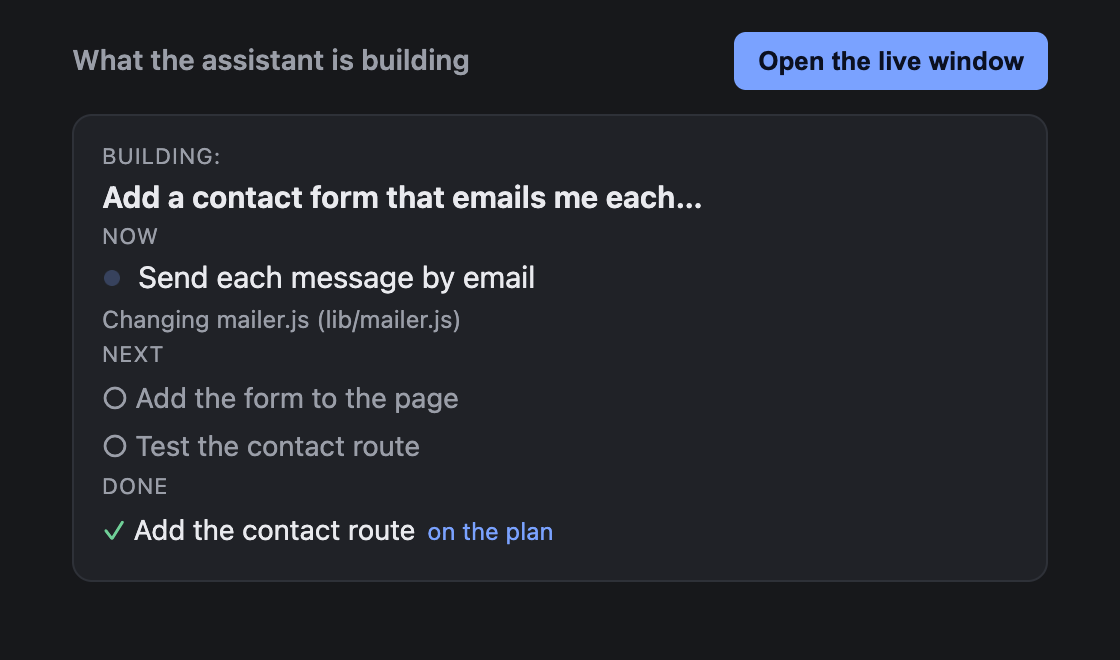
- Building: and the text of the prompt.
- Now: the step in progress. Below it, in smaller letters, the newest action and its file, for example «Changing mailer.js (lib/mailer.js)». That line changes at most every 1.5 seconds, so it stays readable.
- Next: the steps not started yet.
- Done: the steps already finished.
- A yellow band, «The assistant is waiting for you in the terminal», when Claude Code asks for your permission or asks you a question. It goes away when the assistant goes back to work.
- A discreet line when something fails, for example «A test failed — the assistant is fixing it». It goes away once a later step works.
The steps
- When the assistant makes a task list, each task is a step, with Next, Now and Done, as the assistant marks them.
- When it makes no list, there is one step for each area of the project it works on: Interface, Server, Database, Configuration, Tests. Each step is named after what was done there, for example «Database: structure, saving and reading data». The step in progress is the area worked on most recently. There is no Next, because nothing tells codeTAC what comes next.
When the prompt ends
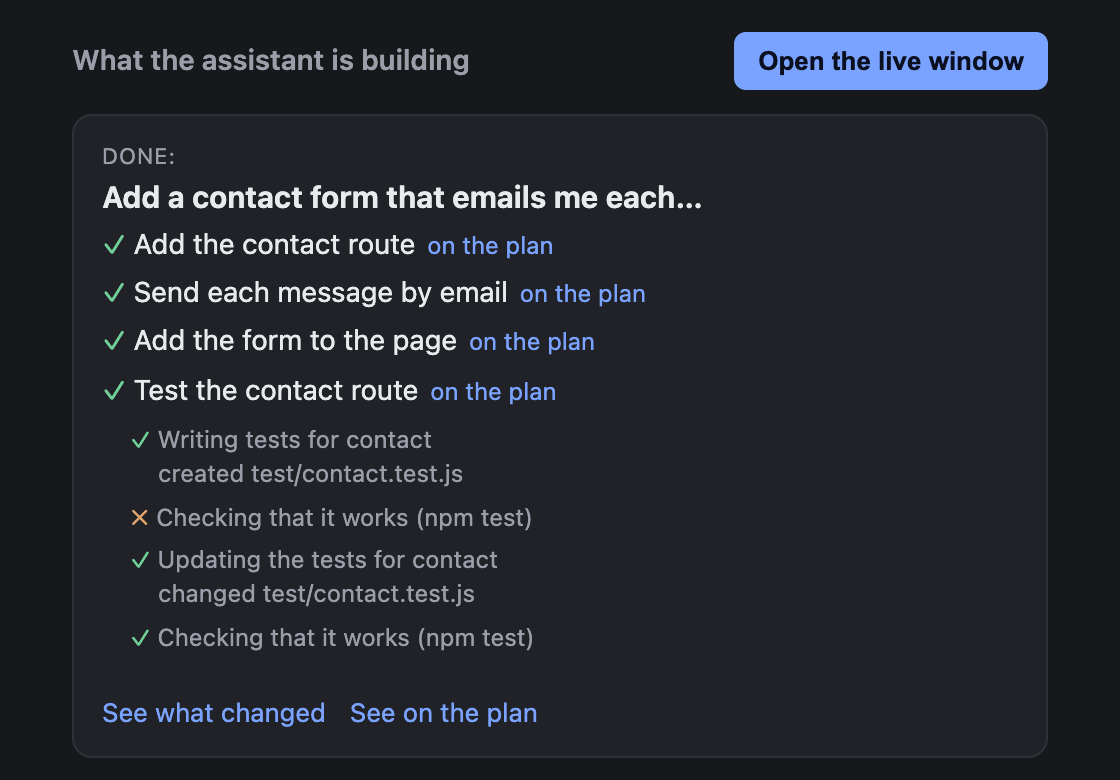
- The title changes to Done:, or to Stopped: if the prompt was interrupted.
- See what changed opens the report of that prompt.
- See on the plan opens the floor plan with that prompt's changes.
- Press a step to see its actions. Each action shows its sentence, its command or file, ✓ or ✗, and the files it wrote, created, changed or removed. It never shows what a command printed, nor the content of the files.
- on the plan, next to a step, opens the floor plan with the step's file selected.
- Earlier prompts lists the project's other prompts. Press one to see its steps, and ← Back to the live view to come back.
In the terminal
codetac live replay prints the steps and the sentences of the newest recorded session. Add a session id for an older one, or --json for the raw data.
Your setting
live.minInterval in codetac.structure.json sets how often, at most, the smaller line can change: between 200 and 60000 milliseconds (default 1500).
Your data
- The steps are kept in codeTAC's data folder (
~/.codetac/live/), never in the project, and nothing is sent: no AI reads them. - What is kept for each step: the tool, the file or the command, and whether it worked. Never the content of the files, what a command printed, nor the assistant's reasoning. When a command writes a file (
cat > file <<EOF), the code it writes is taken out. Secrets in commands are hidden, as in the prompts. - The 50 most recent sessions are kept (
diff.keep).
Limits
- Claude Code only. Other assistants do not tell codeTAC their steps.
- When the assistant writes many files in a single shell command, their steps show up all at once: the window cannot see inside one command.
- Files written by a script (
node gen.js) are not seen as steps. They still show in the report of the prompt. - The names of the steps by area come from the folders and files, so they can sound a little technical («auth server connection»).
- on the plan selects one file of the step, the first one it touched.
- On Windows without
sh, the steps are noted by Node, which is a little slower (about 10 ms per step).